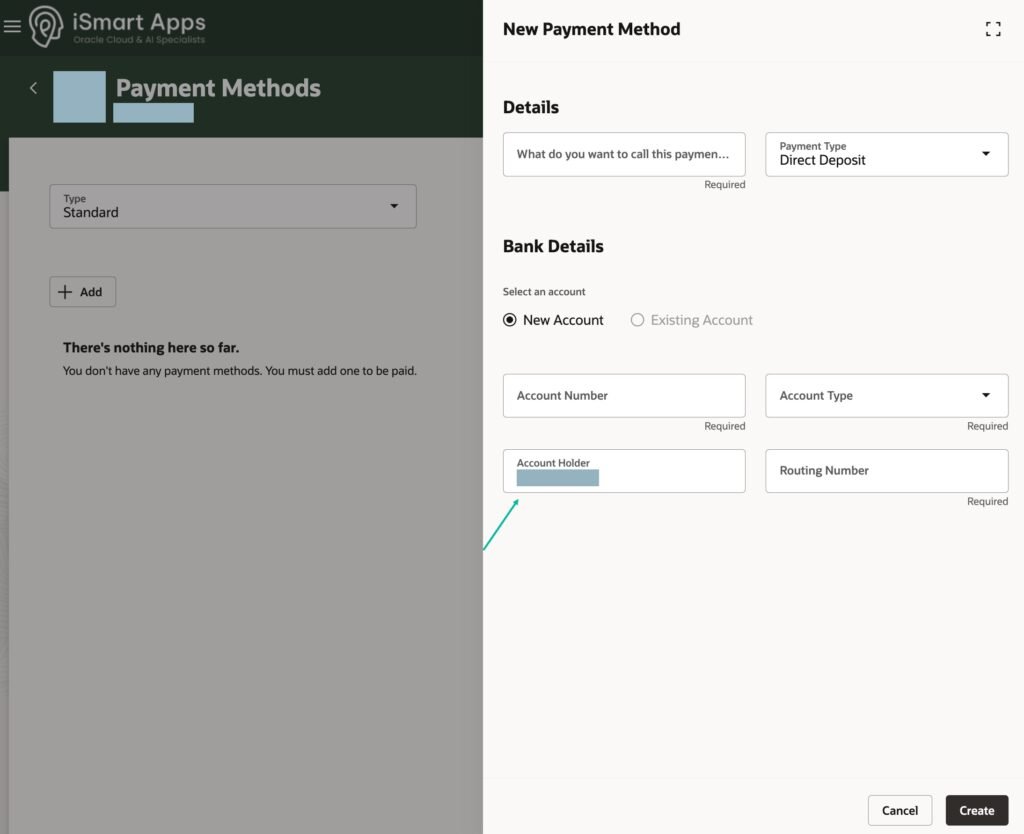
Oracle Fusion predefines the employee bank account fields available for each country, applying country-specific rules. For example, the branch number is labelled as Routing Number for United States banks and Sort Code for UK banks. These rules also differ between the employee self-service UI and the professional user UI — certain fields shown to professional users are not shown to employees. For example, Account Name is not shown for US bank accounts.
Oracle Fusion provides flexibility to change these defaults, particularly useful when you need to show additional fields to employees.
What You Can Change
Add a standard bank account field that is not currently displayed
Update the label of an existing field
Remove a field
Make a field mandatory or optional
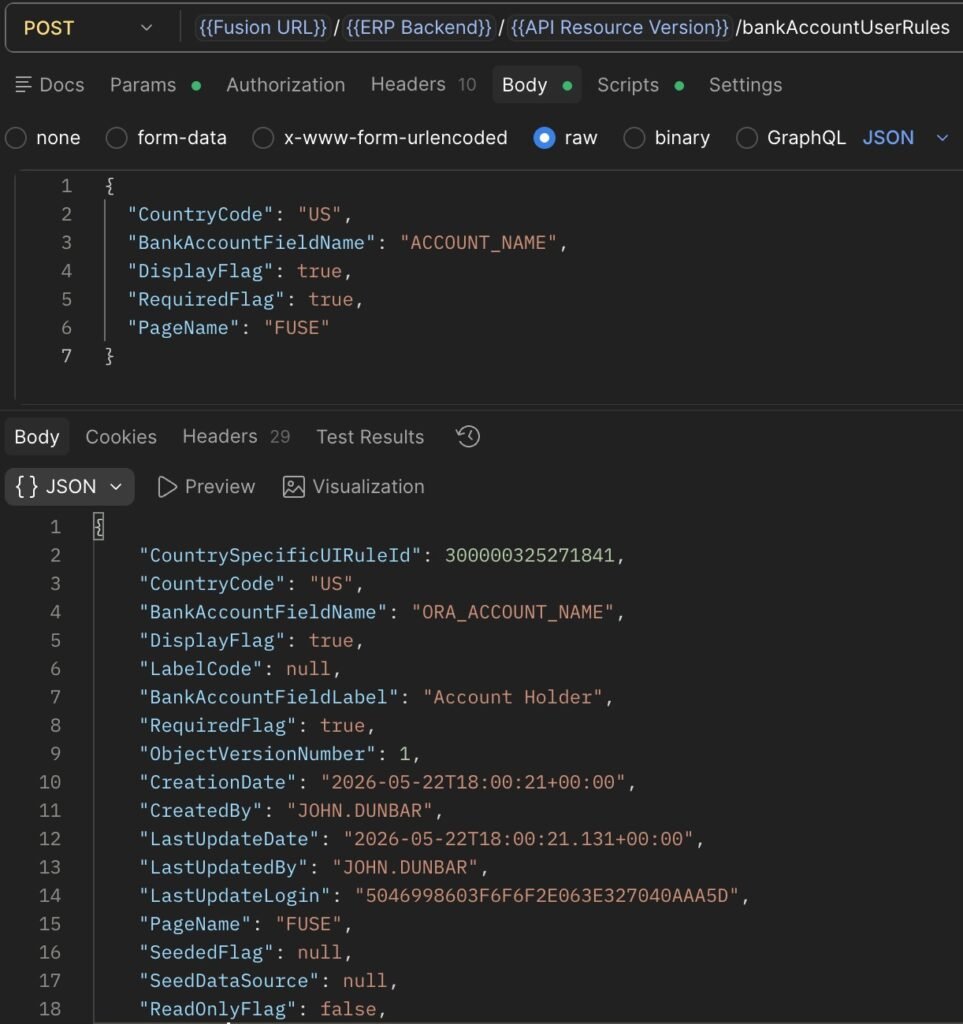
This is achieved using the REST API endpoint /bankAccountUserRules. Note: the Bank Account UI in Redwood is locked for customisations in Visual Builder Studio — REST API is the only way to make these changes.
Example — Add Account Name field for US employees:
json
{
“CountryCode”: “US”,
“BankAccountFieldName”: “ACCOUNT_NAME”,
“DisplayFlag”: true,
“RequiredFlag”: true,
“PageName”: “FUSE”
}
PageName values:
FUSE — Employee Self-Service screen
PROF — Professional User screen
Changes apply immediately once the API call is successful — no sandbox or publish step required.
REST API: Update a Field in the UI
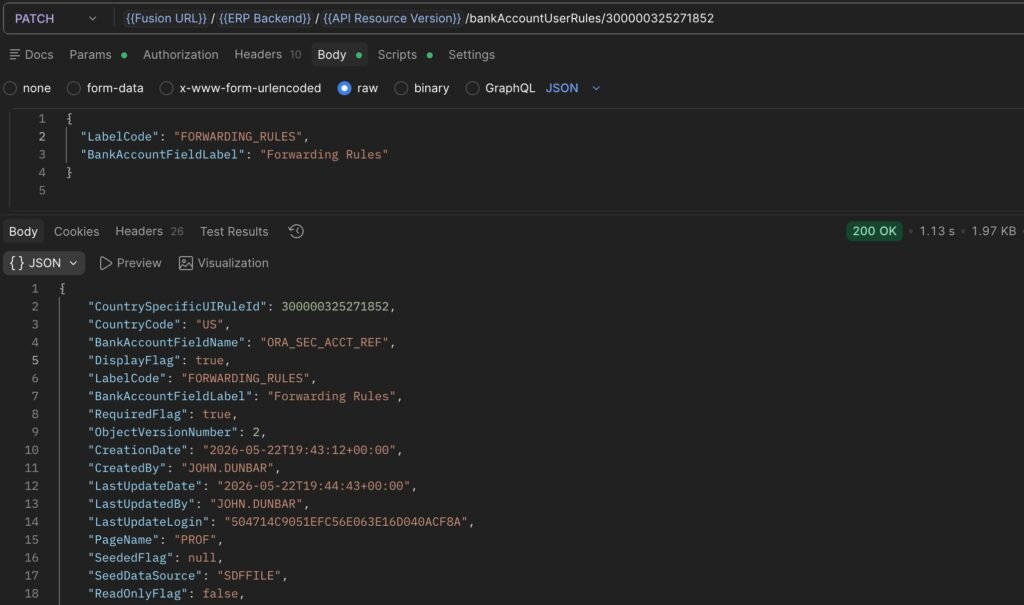
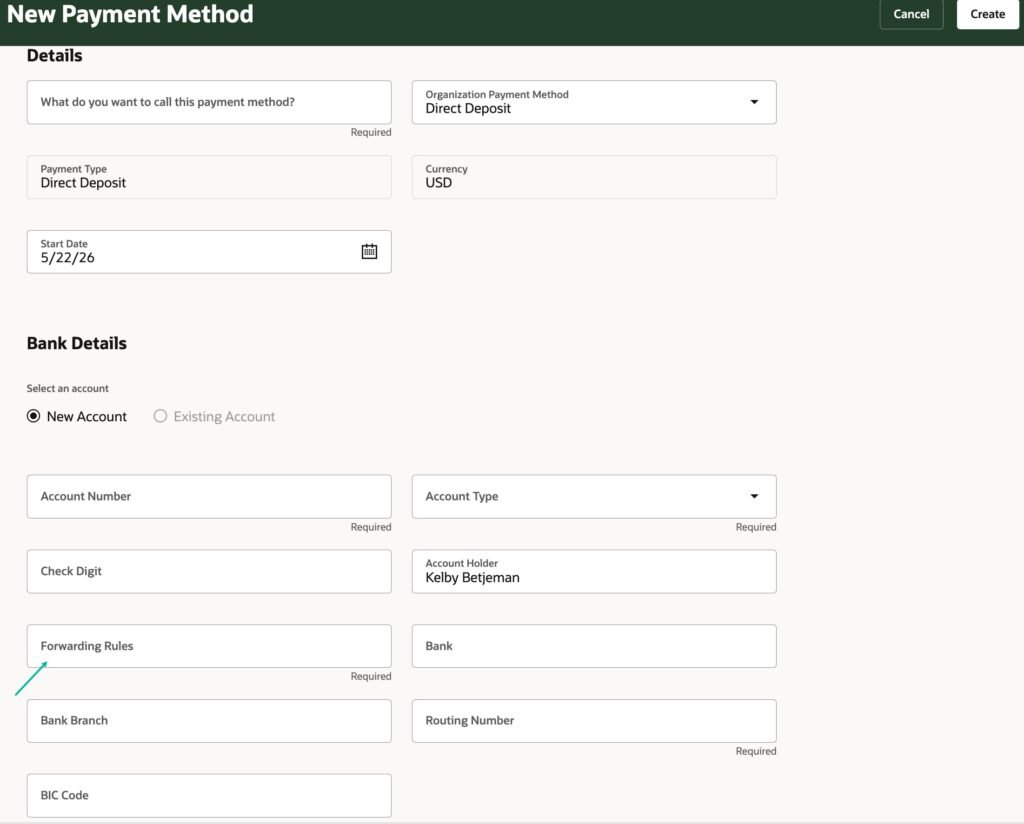
Example — Relabel Secondary Account Reference as Forwarding Rules
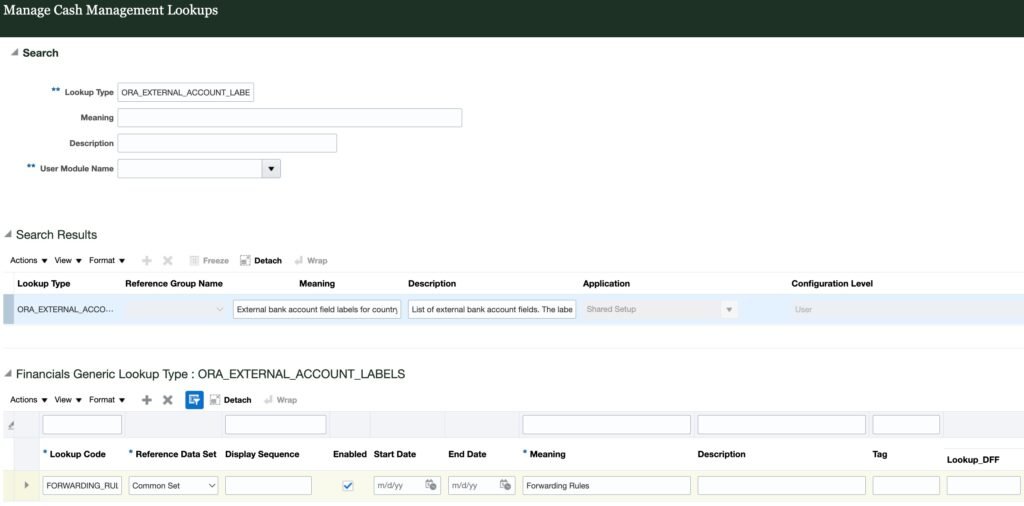
Before you relabel, you must define the label in Cash Management Lookups under Lookup Type ORA_EXTERNAL_ACCOUNT_LABELS.
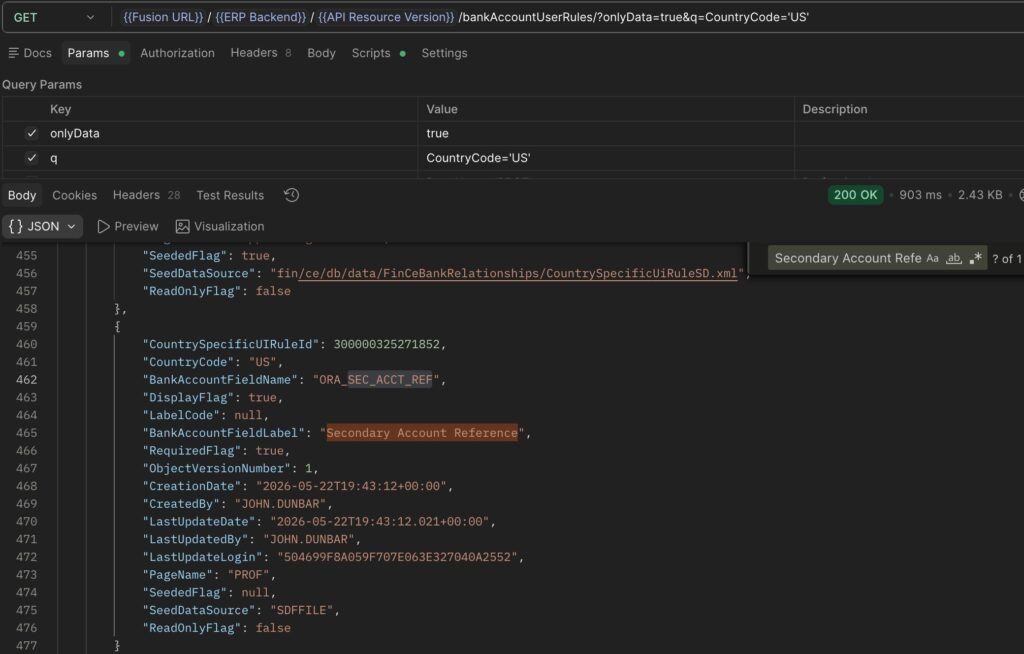
Then identify the Country Specific Rule that refers to the Secondary Account Reference field. To find the CountrySpecificUIRuleId for an existing rule, use a GET request on the bankAccountUserRules endpoint filtered by CountryCode.
Use a PATCH request to update the existing field rule:
Nizam Mogal
Enterprise Applications Architect | Oracle ACE Pro
Nizam Mogal
Enterprise Applications Architect | Oracle ACE Pro
Nizam brings over 20 years of global experience delivering Oracle enterprise solutions. He specialises in Oracle Fusion Cloud across HCM, ERP, Help Desk, Case Management and Fusion Service, with a successful track record of implementing both Redwood and Classic UX for HR and Finance in global enterprises.
With deep product expertise, Nizam provides strategic insight and hands-on experience to ensure implementations are aligned to each organisation’s unique service model and operational goals.