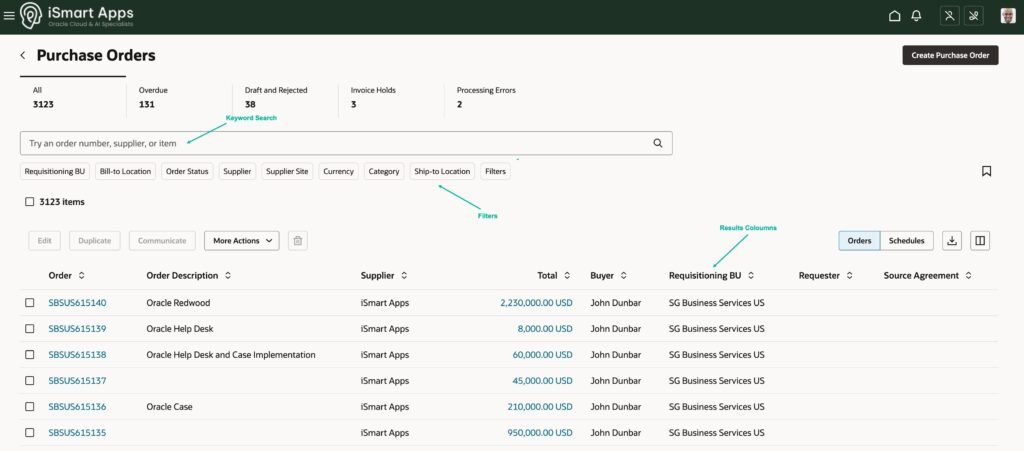
Oracle Fusion Cloud allows you to tailor the search experience on Redwood pages across modules including Procurement, Core HR and Learning. You can configure three areas of a Redwood Search View:
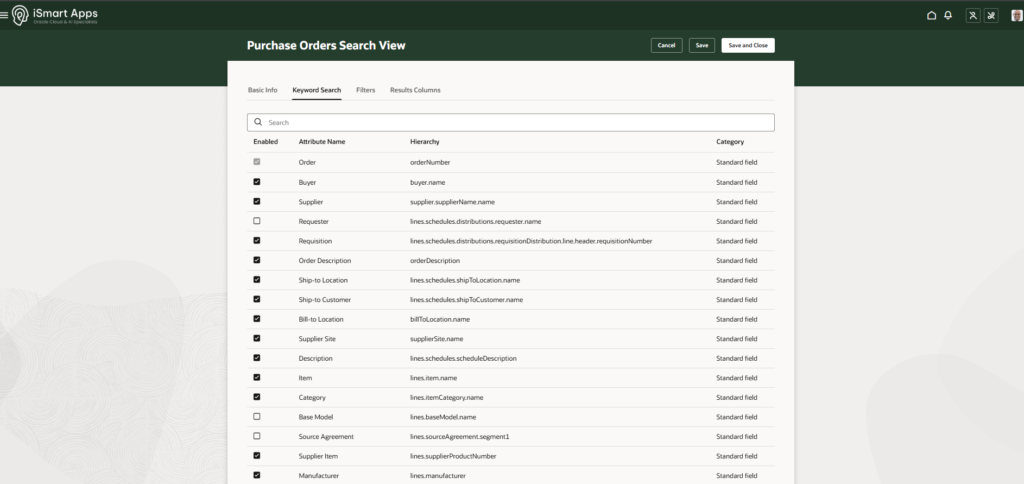
Keyword Search – control which attributes users can search by text
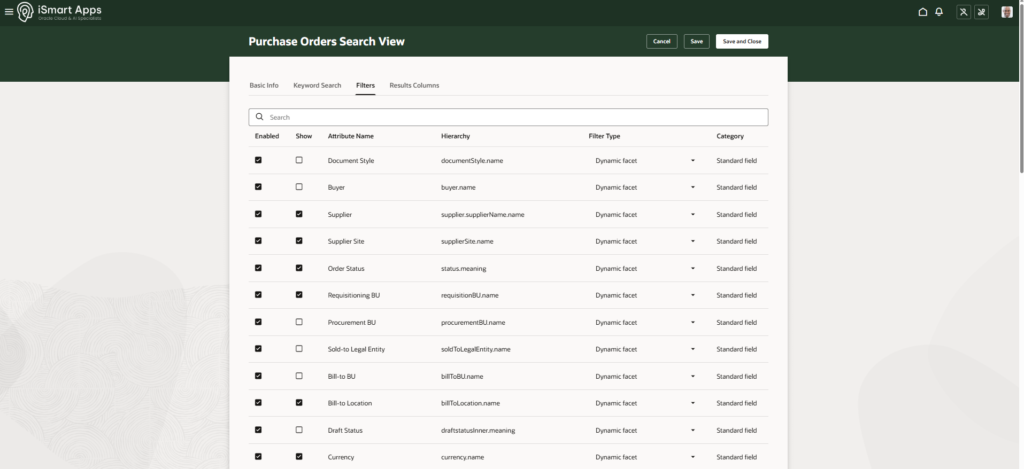
Filters – define what criteria users can narrow results by
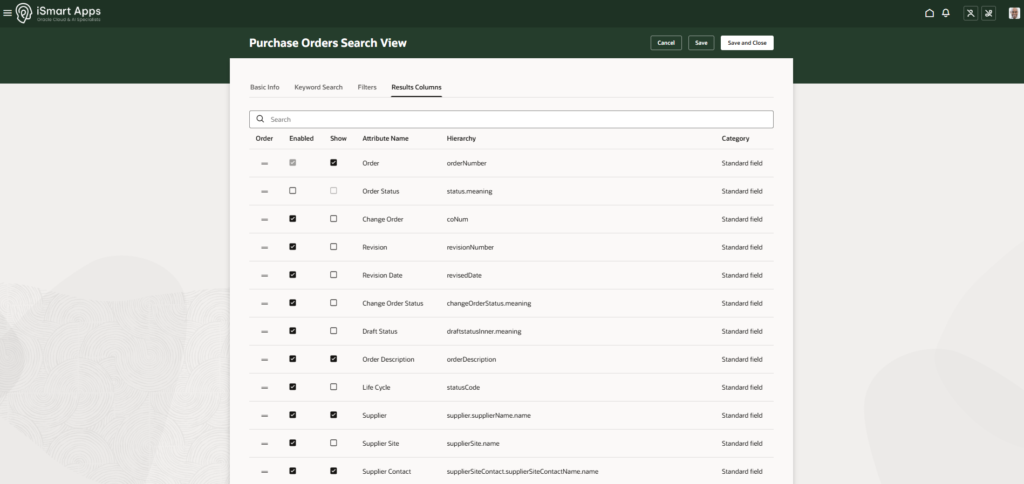
Results Columns – choose which fields appear in the results table
Configure Search View
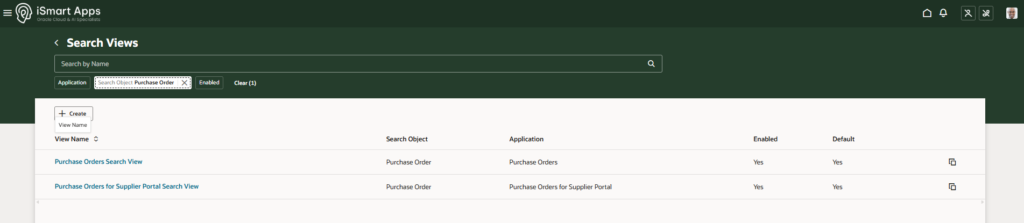
Navigate to My Client Groups > Data Exchange > Search Views
Open the object you want to configure (e.g., Purchase Order). You can Search by object name.
From the search results, select the search view you want to amend
Keyword Search Configuration
Go to the Keyword Search tab
Tick the attributes you want to enable for keyword search
Configure Search Filters
Go to the Filters tab
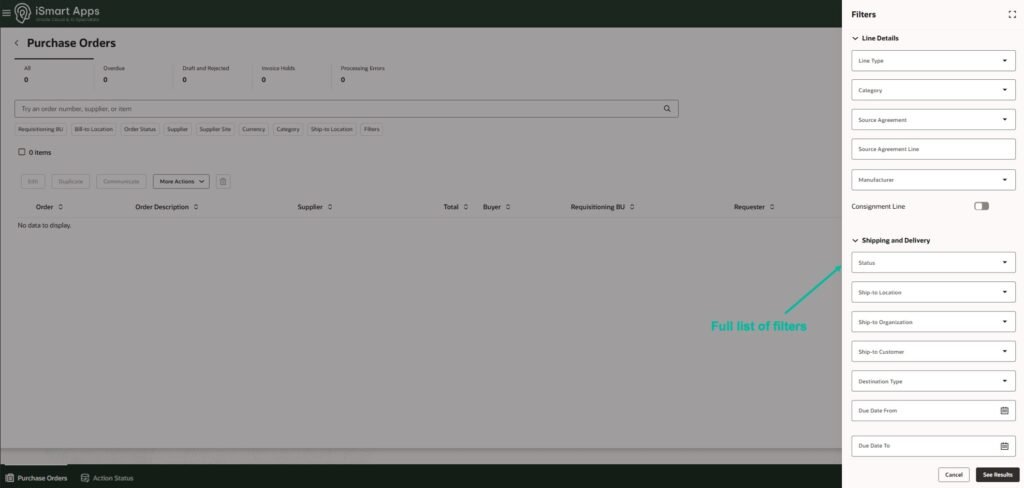
Tick Enabled to add an attribute as a filter — it will appear in the full list of filters
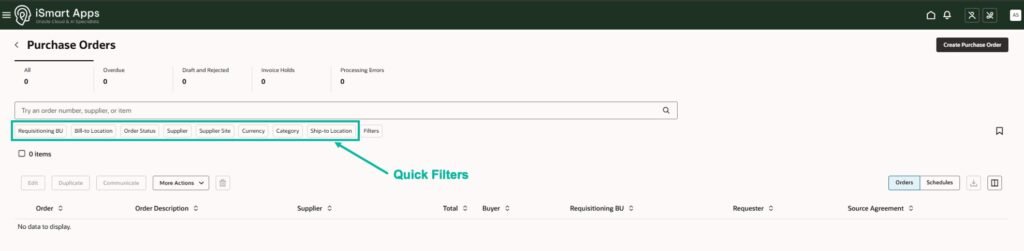
Tick Show to display the filter without expanding the filter panel
Filter Types
Each filter has a Filter Type that determines how it appears on the search page. The type is based on the nature of the attribute and cannot be changed. The known filter types include:
Dynamic Facet — a dropdown that automatically populates with available values (e.g., Ship-to Location)
Switch — a simple yes/no toggle (e.g., Consignment Line)
Text Input — a free-text box where users type text (e.g., Source Agreement Line)
Date Range — two date fields, From and To, for filtering within a date range (e.g., Due Date)
Configure Search Results
Go to the Results Columns tab
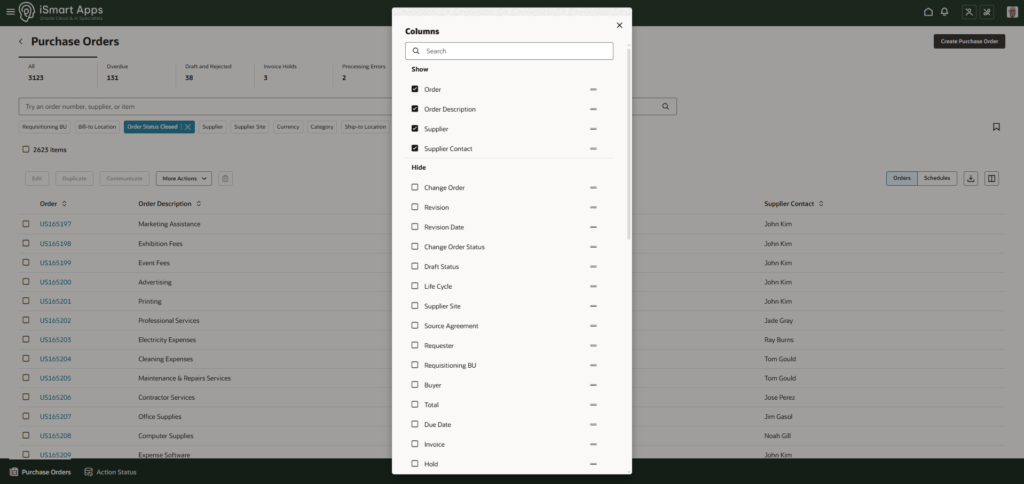
Tick Enabled and Show to display an attribute as a results column by default
Tick Enabled only (leave Show unticked) — the attribute won’t appear in the results by default, but users can add it themselves to personalise their search results
Use the Order field to arrange the columns in the desired sequence
Visit our Events page for upcoming Oracle Fusion Cloud sessions and live demos.
Kirubaa is an Oracle Certified Cloud Applications Expert specialising in Oracle Redwood application development within Oracle Fusion Cloud.
She has experience in delivering customer service, employee support, and supplier management applications in Redwood design. She also leads Classic to Redwood transitions across Fusion HCM and SCM.